From Add-on to Essential: EAM is coming to M365 – E5
Headline News
Following Ignite 2025 Microsoft swiftly announced that, ‘Enterprise Application Management’ (EAM) is coming to Microsoft 365 E5 license holders in 2026.
And that’s not the full story. Other premium endpoint features included with the Intune Suite will be rolled into E3 and E5 subscriptions in 2026. For many, this represents a great opportunity to revisit and re-align the benefits of EAM and gain premium endpoint management features being rolled into existing subscriptions – Including the simplification of Intune application deployment. Evaluating this now and planning for deployment has just been added to your new year’s task list.
You can find a great Microsoft write-up HERE
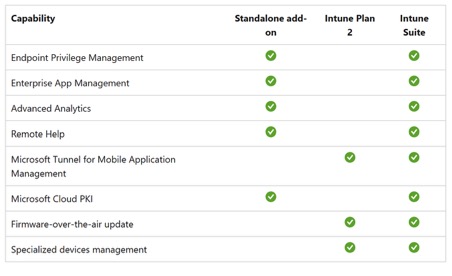
This is the Current situation.
In this blog I’ll take you through the fundamentals of EAM and why it’s worth re-evaluating for deployment and mainstream management. Well cover the following areas:
- Why is it important?
- The changes being introduced
- What Enterprise Application Management is (and isn’t)
- Where EAM fits in the Intune universe
- How EAM works under the hood
- Hands‑on walkthrough: Deploy your first catalog app
- Keeping apps current: update models, SLOs, and supersedence
- Comparing EAM with built‑in Intune features (Win32, LOB, Store, WinGet)
- EAM vs. third‑party app packaging & automation platforms
- Benefits and business outcomes
- Design patterns, rollout rings, and Autopilot integration
- Limitations, licensing, roadmap signals, and when not to use EAM
- FAQ and field tips
1 – Why is this update a big deal ?
Since 2023 and up until July 2026, EAM has and will either be a separate add-on feature OR bundled with the Intune Suite. Both bring extra license charges. By moving EAM into Microsoft 365 E5, Microsoft is making curated, automatically maintained Windows app deployments a core capability which effectively brings an end to the Intune Suite.
Suddenly for those companies already using E5 and looking to justify the costs of Intune Suite or EAM separately this is no longer a concern, much to the delight of many IT Admins. The shift moves EAM from a premium add‑on into mainstream Intune configurations, while E3 tenants benefit from a raised operational baseline. The result: fewer manual packages, faster evergreen updates, and tighter security/automation across Microsoft 365.
2 – Changes being introduced in 2026
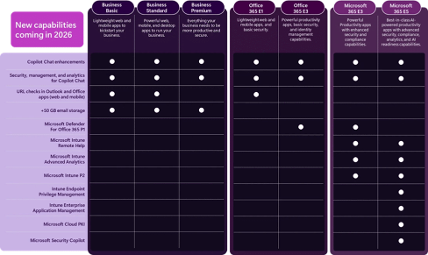
Microsoft graphic: Intune Suite capabilities into Microsoft 365 in 2026: E3 gains Remote Help, Advanced Analytics, Tunnel for MAM, specialty device management and firmware updates; E5 gains Enterprise Application Management (EAM), Endpoint Privilege Management (EPM), and Microsoft Cloud PKI.
Worth noting that in the same breath, Microsoft announced price increases across the M365 Suite and the steam from this announcement is still lingering. How you view this though really depends on your own specific license situation as to how this affects you, Are you paying for Intune Suite already or specific add-ons? Were you about to move to M365 E5 ? The crux of this is if you were already paying $10 per user/per month for Intune Suite (even if you negotiated a lower price) chances are overall, you will gain features which is a bonus. Generally speaking this has been received as a great move that will benefit customers.
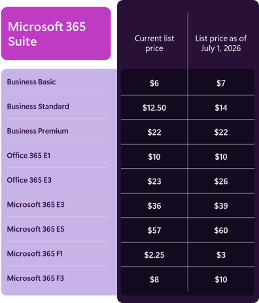
Microsoft sourced infographic
Price changes expected in 2026
When you look beyond the pricing discussion, with EAM becoming a mainstream Intune feature your current application services you rely on from 3rd Party services may now be available built-in to Intune. Now it’s worth mentioning in relation to this that it will all depend on your individual requirements. Third party tools like Patch My PC, Robopack and Recast all provide a broad and comprehensive service that expands beyond EAM (which provides Application management for Windows devices only).
So what is EAM and why is this the right time to re-evaluate your configuration.
EAM in Microsoft Intune offers a curated, Microsoft‑hosted catalog of prepackaged Win32 apps with prefilled install/uninstall commands, detection logic, and requirements as well as update visibility and guided upgrades. For companies currently packaging apps manually themselves It reduces the packaging toil, will speed up updates, and help tighten security. EAM will happily coexist alongside traditional Intune app types (like Win32, LOB and Store apps), Autopilot, and third‑party solutions.
3 – What Enterprise Application Management is (and isn’t)
Definition. Microsoft Intune Enterprise Application Management (EAM) is currently regarded as a premium endpoint management add‑on that lets you discover, deploy, and keep Windows apps up to date using a Microsoft‑maintained Enterprise App Catalog of prepackaged Win32 applications (including both Microsoft and non‑Microsoft). Microsoft hosts the binaries and prepopulates installation metadata so admins don’t have to package each installer themselves.
Key ideas:
- The Enterprise App Catalog is a curated list of Win32 apps built-in to Intune, hosted and stored by Microsoft (*.manage.microsoft.com), with prefilled program commands, detection/requirement rules, and return codes. You can edit them, but the recommendation is to keep defaults.
- Apps you add from the catalog show up as Windows catalog app (Win32) in Intune—still a Win32 app type, just built from Microsoft’s catalog source.
- You can add new application requests, suggest changes, and share any other feedback about Enterprise application management HERE (Filter the feedback portal under Categories by selecting Enterprise App Management (Intune add-on) ).
- The Enterprise App Catalog includes apps that self‑update which for most apps means its more controlled and quicker to deploy.
- Can now be added as blocking apps within an ESP profile alongside other apps
What EAM is not:
- It isn’t a replacement for all app types (e.g., Store apps, custom LOB MSIs, complex line‑of‑business packages, macOS/iOS/Android app flows). It focuses today on Windows Win32 catalog apps only.
- It isn’t a magic “auto‑update everything” across every vendor and platform. The catalog size and update cadence are expanding all the time (see list here) , but you should expect to blend EAM with other Intune deployment types and using the 3rd party solutions that fit your specific company requirements.
Assigning an Enterprise App catalog App:
Assigning is easy within the Intune Admin Cnter. Navigate to Apps from the left hand menu, choose the platform (Windows) and when added into your tenant you will see the addition of ‘Enterprise App Catalog app’.
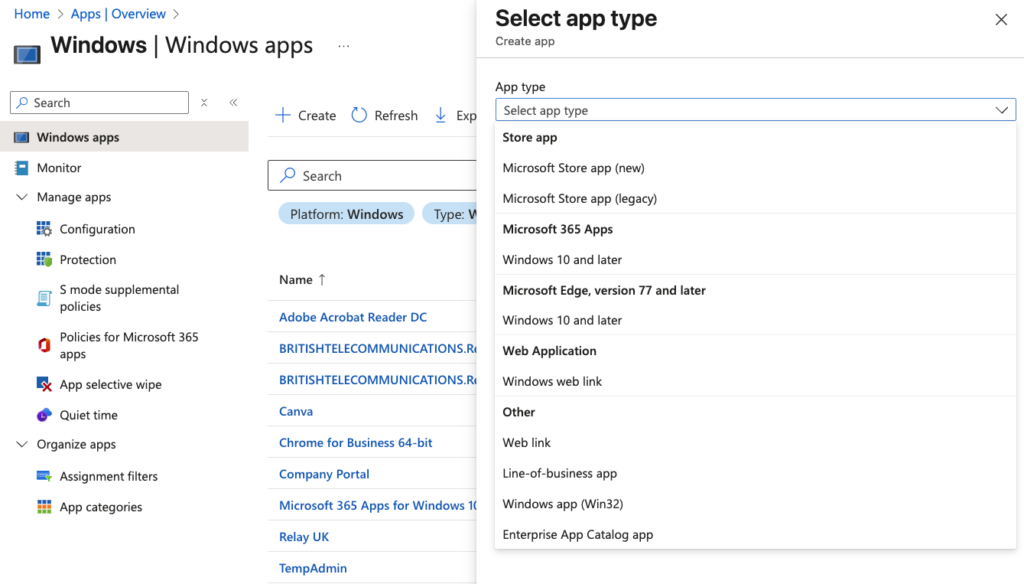
Go to Intune Admin Center> Apps > Windows > Create
4 – Where EAM fits in the Intune universe
Think of Intune’s app story as layers:
- Core app management (MDM/MAM): Add and assign apps, protect data with App Protection Policies (MAM), configure updates and access.
- Win32 app management: Traditional packaging using .intunewin with full control over dependencies, requirements, detection, supersedence.
- Store apps / winget: Lightweight publication via Microsoft Store or automation via WinGet and PowerShell.
- EAM (this guide): Curated, Microsoft‑packaged Win32 apps with hosted content and guided upgrades, surfaced and deployed via Intune.
EAM sits alongside these, reducing effort for the common set of third‑party apps you previously had to package and update by hand. Microsoft’s own positioning emphasises streamlining app lifecycle management while improving security posture by speeding updates and surfacing available upgrades. Some examples here are:
Developer & IT Tools
- 7‑Zip
- Python (various distributions via Amazon Corretto JDK 11–19)
- AWS CLI & AWS Tools for Windows
- Android Studio (multiple versions)
- Azure Functions Core Tools
These tools are notoriously fast moving with frequent updates – exactly where EAM reduces security exposure by ensuring rapid access to the latest builds. Faster updates reduce exposure to vulnerabilities and outdated binaries.
5 – How EAM works under the hood
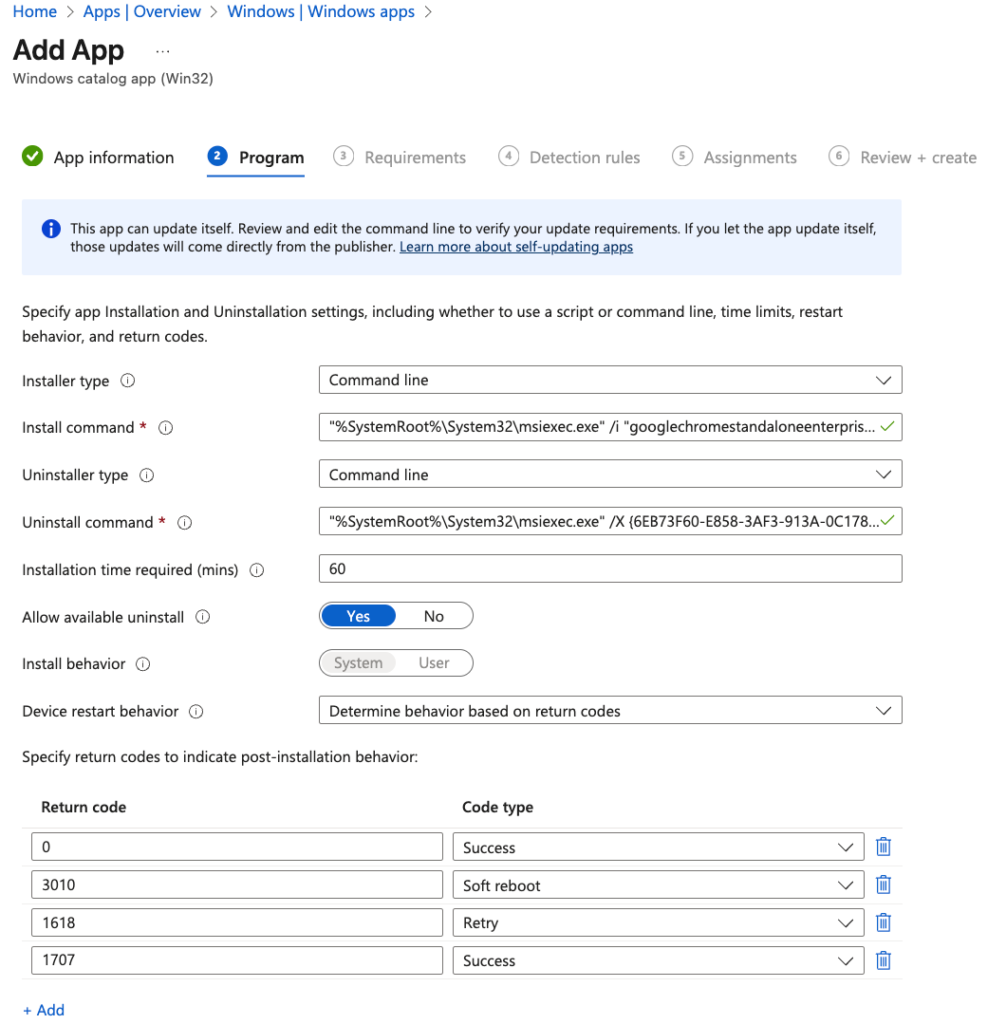
When you add a catalog app, Intune prefills:
- Program: Silent install/uninstall commands, install time, restart behaviour, return codes.
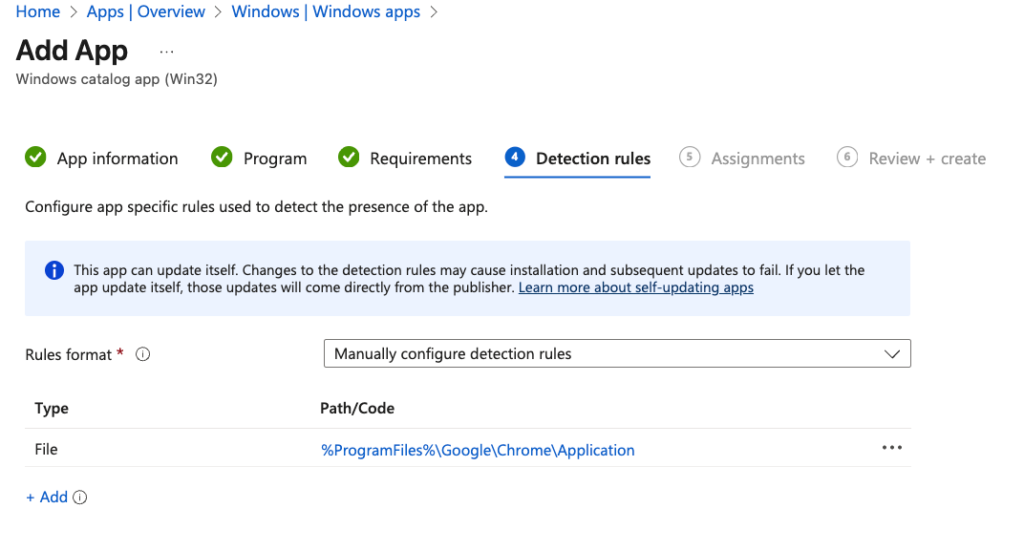
- Detection: File version/size and Registry checks.
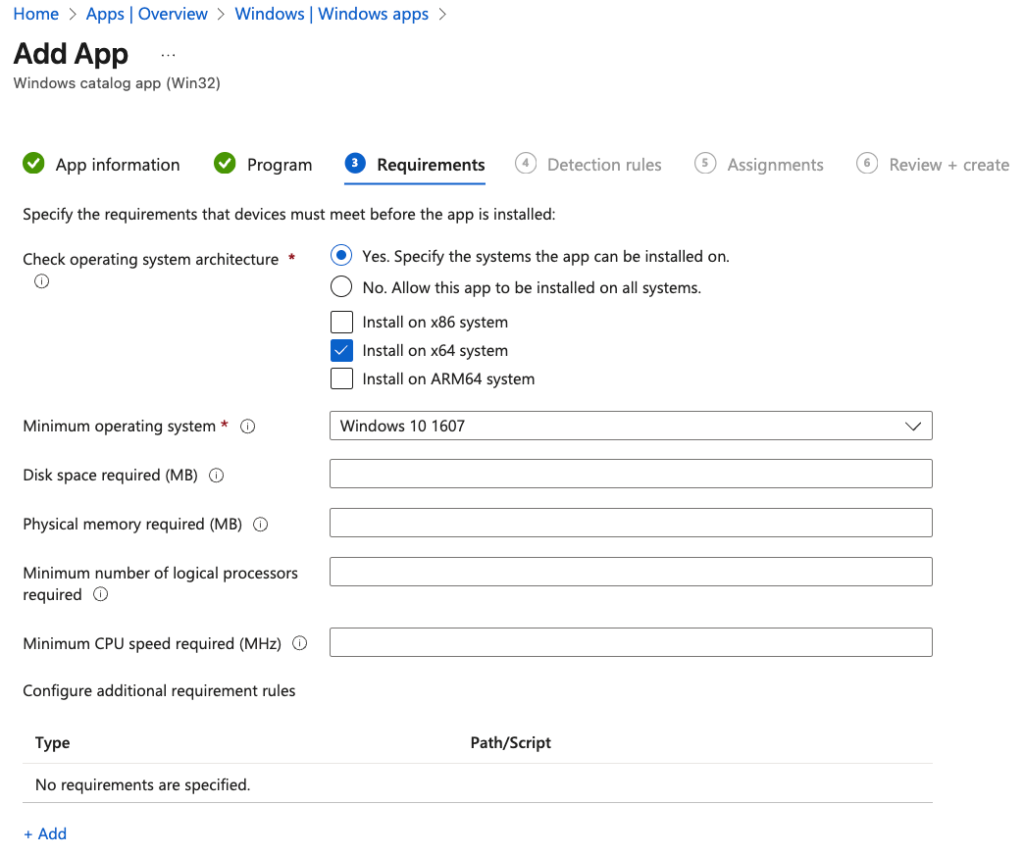
- Requirements: OS architecture and minimum OS version.
You can modify these fields, but Microsoft recommends maintaining prepopulated values because they’re already validated. The app is delivered as a Win32 app via the Intune Management Extension (IME), and by hosting the binaries themselves it simplifies content distribution and keeps the process built-in which is always the best approach.
Self‑updating apps. In the main the catalog apps are self-updating, but what does this mean. There are 2 threads to this:
The EAM Route
- Apps in the Catalog support an automated update lifecycle
- Microsoft maintains and prepares the new versions in the catalog as they are released
- Intune surfaces the update in the ‘Apps with updates’ report
- The IT Admin approves or triggers the update via supersedence
Publisher auto-updating
- Some catalog entries are flagged as self‑updating. In this scenario the vendor updates the app on the device automatically using the vendor’s updaters configured with the App deployment. These are apps like Chrome, Firefox, Zoom, Slack, Burp Suite, 7-Zip (when installed via EXE)
- Intune considers it installed if it meets a minimum version target you set. EAM also provides a report of catalog apps with updates to guide upgrades for non‑self‑updating entries.
You can view the report at Intune Admin Center > Apps > Monitor > Ent App Catalog with updates
Service Level Objectives (SLOs) for updates. Microsoft states that most app updates pass automated validation and appear in the catalog within 24 hours, while updates requiring manual testing typically publish within seven days.
Autopilot support. Catalog apps can be designated as blocking apps in Windows Autopilot Enrollment Status Page (ESP) and Device Preparation Page (DPP) without constantly editing profiles for new versions—EAM abstracts the versioning for you.
App selection with multiple versions:
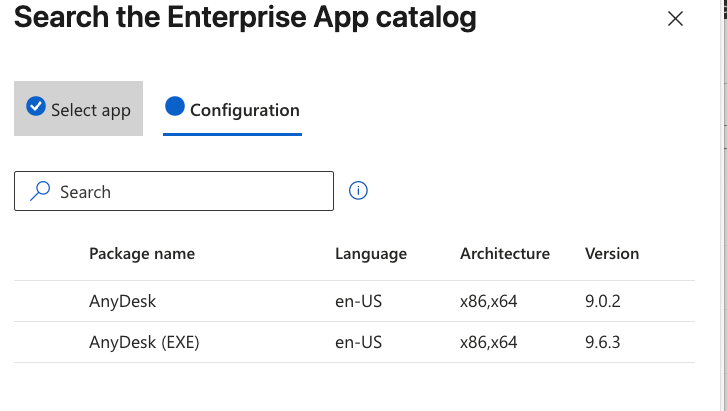
Apps within the catalog generally show with x1 version (latest packaged version) but for a few, multiple versions exist, such BlueJeans or AnyDesk as shown above.
6) Hands‑on walkthrough: Deploy your first catalog app
Below is a practical, end‑to‑end flow (you can substitute Notepad++ as examples):
- Intune admin center → Apps → All apps → Create → Choose Enterprise App Catalog app.
- Select Search the Enterprise App Catalog, search for your app (e.g., Notepad++), and select it.
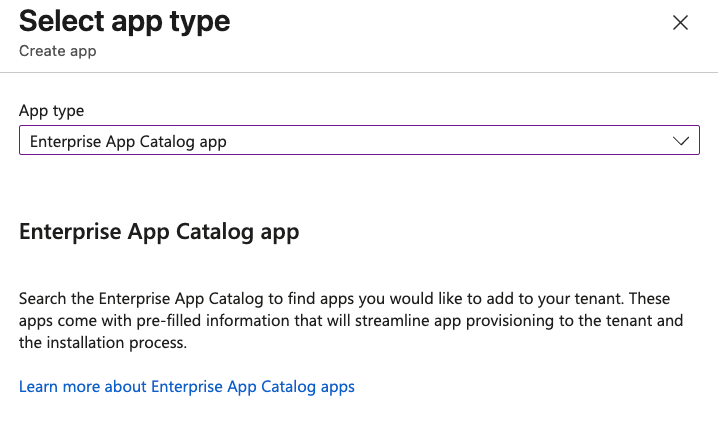
- In Configuration, pick the version/language/architecture (if multiple), then Select.
- Review App information, Program, Requirements, Detection rules—already prefilled. Adjust only if you have a strong reason (custom switches, specific detection).
- Create the app. After content uplifts complete, go to the app’s Assignments and target your pilot group(s). It’s always best practice to test the deployment and installation first.
Follow the steps below:
App Information screen:
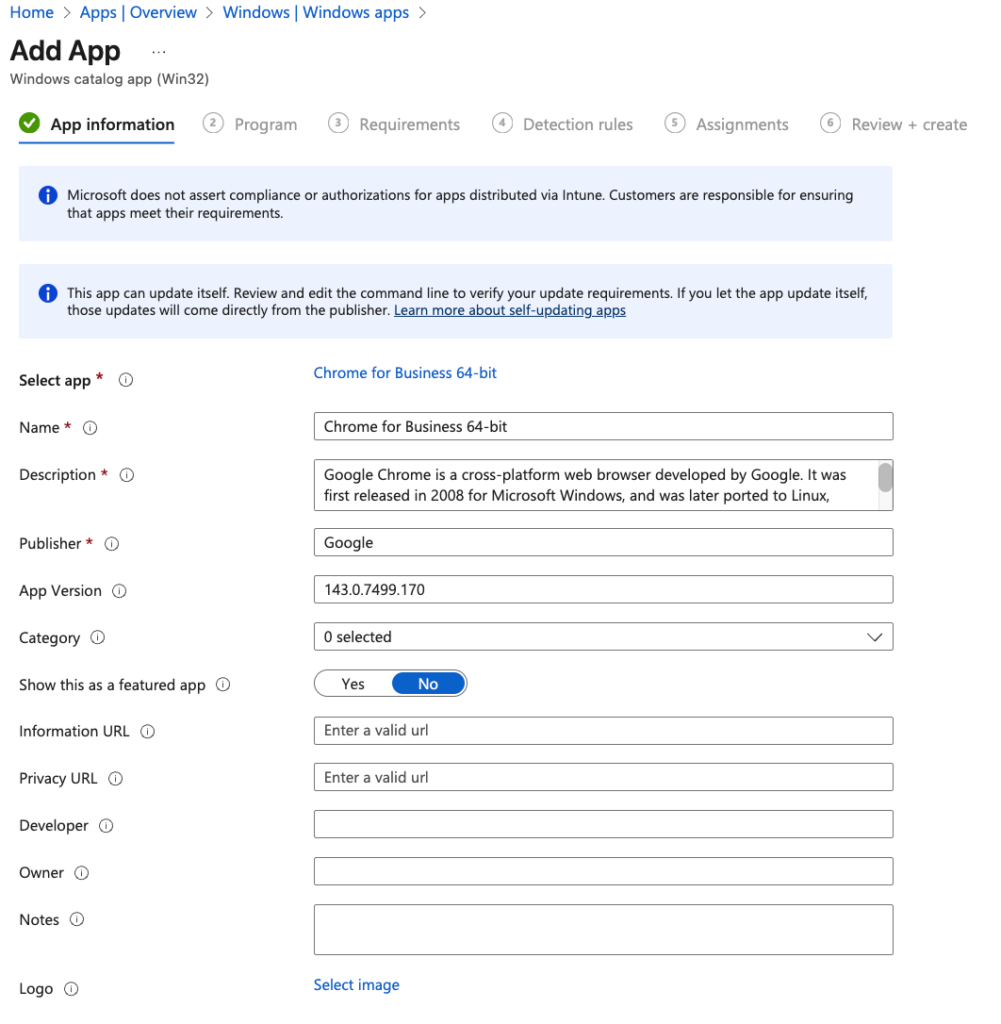
Program Information screen:
Requirements screen:
Detection rules screen:
Finish up the deployment with your assignments, then review and create.
7 – Keeping apps current: update models, SLOs, and supersedence
EAM helps you track and apply updates in two primary ways:
- Self‑updating apps
- Guided upgrades for non‑self‑updating apps: Use the Enterprise App Catalogapps with updates report to find upgrade candidates, then press Update on the app. Intune then creates a new app object with details prefilled and configures supersedence to replace the older version.
Publishing timelines. Expect most catalog updates within 24 hours, complex ones within seven days, per Microsoft’s Service Level Objectives (SLO). Use this to set internal SLAs and change windows.
8 – EAM vs. current built‑in Intune features
We can’t really talk about EAM without positioning this alongside the current built-in Win32 App deployment method. Why ? well this is probably the way most companies currently deploy and you will need to review each app you use and see if you want to change to EAM. Where you have an application you’ve already packaged and deployed through Intune as a Win32 App you would have packaged tan imported individually with a .intunewin package.
EAM vs. Win32 app management (manual packaging)
| Capability | EAM (catalog app) | Win32 app (manual) |
| Packaging effort | None (Microsoft‑prepared) | Admin wraps installers, builds detection/requirements |
| Content hosting | Microsoft‑hosted | Admin uploads content (.intunewin) |
| Detection/requirements | Prefilled (editable) | Custom (full control, but work) |
| Updates | Report + guided upgrades; some apps self‑update | Manual supersedence/update packaging |
| Complex customizations | Limited to edit fields/commands | Full control (scripts, dependencies, transforms) |
| Autopilot blocking app | Supported, version‑agnostic | Supported, but you’ll update profiles when versions change |
EAM removes repetitive packaging effort for mainstream apps, while manual Win32 remains the tool for custom, complex, or proprietary apps.
EAM vs. Line‑of‑Business (LOB) MSI
- LOB (MSI) is “single‑file upload” convenience—but offers less control than Win32, struggles with complex setups, and can cause headaches when the MSI is just a wrapper around an EXE. Many admins therefore gravitate to Win32 for robustness. EAM sidesteps packaging by delivering a pretested Win32 package.
EAM vs. Microsoft Store / WinGet automation
- Store apps are great for evergreen Microsoft apps and simple scenarios, but you lose version pinning and install customisations. The New Store (or app publisher) pushes the latest release plus update timing is not guaranteed and you can’t control or force specific versions.
- WinGet + PowerShell can automate installs/updates effectively—especially for SMEs—but lacks enterprise‑grade version control/rollback/testing flows out of the box. Use it as a supplement, not a replacement, for strict change control. EAM gives you catalog vetting, hosted content, and guided upgrades aligned with Intune reporting.
9 – EAM vs. third‑party app packaging & automation services
Solutions like Patch My PC (and others) have long filled the third‑party patching gap with large catalogs, custom pre‑ and post‑install scripting, fine‑grained rings, update automation, and broad platform coverage (ConfigMgr + Intune). How does EAM stack up?
Catalog size and coverage
- EAM launched with approx. 90–100 apps but this has grown to around 600 and is regularly growing. With EAM becoming mainstream I do expect this to ramp up as more customers start using the available features from 2026. Its reported Microsoft will target several thousand apps over time.
- Third‑party platforms typically offer broader catalogs today, across more niche software, and often with macOS coverage; EAM remains primarily Windows Win32 for catalog apps with no current plans to change. On this basis alone EAM may not fit your company requirements. This is where the specific analysis needs to happen.
Packaging flexibility & automation depth
- EAM: Prefilled commands, detection, requirements; guided supersedence; mix of self‑updating vs. admin‑driven upgrades. Simple, opinionated, integrated in Intune.
- Third‑party: Rich pre/post scripts, customizations, sophisticated ring‑based automation, ConfigMgr integration, and Intune publishing—useful for complex environments and app estates beyond EAM’s current catalog.
SLA, hosting, and trust
- EAM: Microsoft‑hosted content and SLOs (24h automated / 7d manual) provide predictability and a single admin experience within Intune.
- Third‑party: Mature pipelines and hosting; vendors publish transparent release notes and QA processes. Some offer customer‑side control over when updates publish to production.
Cost and vendor consolidation
- With EAM being added to M365 E5 there is a real opportunity for companies to re-evaluate their App deployment services and associated charges. Obviously for M365 E3 subscriptions you will still need to purchase EAM as an add-on so the same decisions still remain, Do you go EAM or purchase a 3rd party service ? Microsoft highlights the consolidation value of keeping workflows inside Intune which there is value in. I would say evaluate license deltas vs. the advanced features you rely on from existing vendors.
Bottom line. If most of your app estate is mainstream and your team values simple, integrated workflows, EAM can cover a large share. If you depend on niche apps, deep customisation, or cross‑platform catalogs today, third‑party tools may still complement EAM. The answer may even be running a hybrid platform solution: EAM for common apps + vendor tool for edge cases.
10 – Benefits and business outcomes
Operational efficiency
- No more repackaging common apps; install/uninstall, detection, requirements are prefilled. Faster time‑to‑deploy.
- Guided upgrades and update reports to keep inventory current with less manual tracking.
- Autopilot integration to block on essential apps without chasing version changes in ESP/DPP profiles.
Security posture
- Faster app updates reduce the window of exposure. Microsoft’s announcement highlighted the risk of lagging app patches in breach scenarios.
- Self‑updating apps meet minimum version targets while preserving vendor updater flows (ensure network allow‑lists).
Strategic consolidation
- Keeping app lifecycle tasks within Intune reduces context switching, leverages familiar RBAC/reporting, and can lower vendor complexity, but this all depends if you are running a hybrid type platform.
11 – Design patterns, rollout rings, and Autopilot integration
Rollout rings with EAM
- Start with IT pilot (IT + power users) → broaden to early adopters → organization‑wide. Use EAM’s apps with updates report to track impact and progression.
- For self‑updating apps, set minimum required version thoughtfully and communicate user impact (e.g., vendor‑triggered updates during work hours).
Autopilot ESP/DPP
- Mark key catalog apps as blocking in ESP/DPP. EAM abstracts versions, so you aren’t editing profiles whenever the catalog advances. Great for “work‑ready at first boot” outcomes.
12 – Limitations and roadmap signals
Current constraints to note
- Windows Win32 focus for catalog apps; not a universal solution for macOS/iOS/Android app packaging. Keep your existing flows for those platforms.
- Catalog coverage may not include all niche/vertical apps you need today. Validate your app list against current catalog trackers and Microsoft’s docs.
- Customisation depth: You can edit commands/rules, but EAM favours a standardised package. Very complex customisations might still require manual Win32 packaging or third‑party tools.
- 3rd Party solutions – Like Patch My PC, Robopack, Scappman (now owned by PMPC) Chocolatey and Recast which are apps packaging leaders and provide automated services integrated with Intune. Where volume or complexity is needed unlike EAM they are a must view in comparison and provide a broad service with some offering the integration with SCCM which may be more appropriate.
Roadmap signals
- Microsoft continues to expand the catalog and refine update experiences; watch What’s new and Intune Blog announcements to plan adoption waves.
13 – FAQ and Tips
Q1. How do I recognize an app created through EAM?
Look for App type = Windows catalog app (Win32) in the Intune console.
Q2. Can I change the prefilled install command?
Yes, but Microsoft recommends using defaults to avoid breaking installation/detection. Be careful—unexpected or harmful commands could be passed if you modify fields.
Q3. How quickly do catalog updates appear after a vendor releases a new version?
Microsoft aims for within 24 hours for updates that pass automated validation; within seven days for those needing manual testing.
Q4. Does EAM help with Autopilot ESP/DPP?
Yes. You can mark catalog apps as blocking without updating profiles for new app versions.
Q5. Where do I see apps needing updates?
Use Monitor → Enterprise App Catalog apps with updates; click Update to spin up a new app version with supersedence filled.
Q6. Is there a comprehensive list of catalog apps?
Microsoft doesn’t publish a static list in docs, but reputable community lists track catalog coverage and are regularly updated. Validate against your tenant. List Here
Q7. How does EAM compare to packaging with WinGet + PowerShell?
WinGet scripting is powerful and low‑cost, but lacks the enterprise guardrails (built‑in catalog vetting, guided upgrades, consolidated reporting) that EAM provides. Many teams use WinGet to supplement EAM for specific engineering/dev scenarios.
Q8. How does EAM relate to broader Intune app management and MAM?
EAM solves packaging and updating for many Windows apps. App Protection Policies (MAM) still handle data protection inside apps e.g., new iOS screenshot blocking behaviour (with override key available).
Complete example: From zero to an updated Zoom deployment
Scenario: You want to deploy Zoom today and keep it evergreen.
- Create → Enterprise App Catalog app → Search “Zoom” → Select latest version. Intune fills install/uninstall, detection, and requirements.
- Assign to a pilot ring (IT + early adopters). Monitor install success and app health.
- When Zoom releases a new version, check Enterprise App Catalog apps with updates. Hit Update, which creates a new app object with supersedence back to the previous one; assign to pilot, then to broader rings after validation.
When to use what — quick decision guide
- Use EAM if the app exists in the Enterprise App Catalog, needs little customization, and you want fast, integrated updates with Microsoft‑hosted content.
- Use Win32 (manual) for complex apps (custom scripts/transforms, multi‑file installers, intricate detection) or when you need granular change control beyond EAM’s opinionated defaults.
- Use Store for evergreen Microsoft apps where version pinning isn’t required and user experience favours lightweight installs.
- Use third‑party tools to complement EAM for niche catalogs, for cross‑platform coverage, or advanced automation beyond EAM’s current scope.
- Use WinGet + PowerShell for engineering/dev scenarios and quick automation where enterprise change controls are lighter.
Closing thoughts
Enterprise Application Management changes the center of gravity for Windows app lifecycle work in Intune: less packaging, faster updates, single‑pane workflows, and Autopilot‑friendly provisioning. With recent announcements to bring EAM to M365 E5 subscriptions this changes the landscape and specifically the price to deploy and manage a company apps. It’s not everything for everyone yet and some would argue it trying to be. The best outcomes pair EAM with the right complementary mechanisms (manual Win32, Store, third‑party, WinGet) based on your app portfolio’s breadth and risk profile. Microsoft’s ongoing investments and SLOs make EAM a compelling default first choice for a growing portion of your catalog.