Part 2 of 2: The Configuration and deployment. Author: Andy Jones | move2modern.co.uk
Tags: Intune, macOS, BYOD, Cyber Essentials, Conditional Access, MAM, Entra ID
Following on from part 1 of this blog series (theory and approach), part 2 digs into the details of the policies, settings and structure to the configuration needed to deploy the macOS BYOD solution. It’s important that I highlight that a phased approach is followed here to ensure it gets implemented correctly. I would definitely recommend reading through part 1 of this blog FIRST to provide the context and positioning. Lets work through it. Create the following Conditional Access policies within your own tenant for macOS unmanaged BYOD.
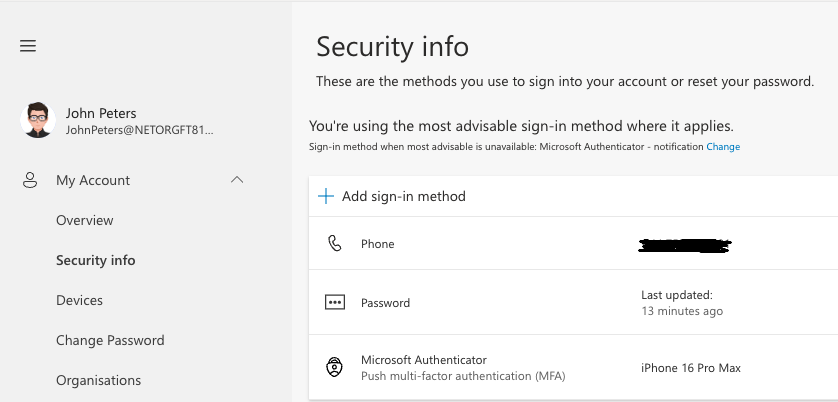
For this setup and test I am using a test account in my own tenant, John Peters. The John Peters account has a Microsoft 365 E5 License and has MFA enabled. Reference to test cases below will use Johns account as shown.
| Phase | Policy | Purpose | Mode |
|---|---|---|---|
| Phase 1 | CA‑01 | Block legacy auth | On |
| Phase 2 | CA‑02 | Enforce MFA | Report-only → On |
| Phase 3 | CA‑03 | Block native apps | Report-only → On |
| Phase 4 | SPO‑01 | Web-only access | On |
| Phase 5 | CA‑04 + MDCA | Session control | Report-only → On |
| Phase 6 | CA‑05 | Session control | On |
| Phase 7 | EMS‑01 | Browser governance | On |
Phase 1 — Block Legacy Authentication
CA-01 | Block Legacy Authentication
Why first: this is the lowest-risk policy. It only blocks non-modern authentication protocols – SMTP AUTH with Basic credentials, older IMAP/POP clients, Exchange ActiveSync using Basic auth. It does not affect any modern browser sign-in or MFA-capable client. For this policy It can go straight to enabled without a report-only period, provided you’ve completed the audit in pre-flight Step 5.
Create the policy
Entra admin centre (Entra.microsoft.com) → Conditional Access → Policies → New policy
| Setting | Value |
| Name | CA-01 – Block Legacy Authentication |
| Users | All users |
| Exclusions | BreakGlass accounts group |
| Target resources | Resources (formally All cloud apps) |
| Conditions → Client apps | Exchange ActiveSync clients; Other clients |
| Grant | Block access |
| Enable policy | On |
You can save this BUT PLEASE dont proceed until you’ve confirmed in Sign-in logs that legacy auth attempts are being blocked and that modern browser sign-ins are unaffected.
Phase 2 – Require MFA for All Users
CA-02 | Require MFA — All Users
Why second: MFA is the foundational CE user authentication control. It goes in report-only first. It’s recommended to not enforce until every user has completed MFA registration. Running Phase 1 first means legacy clients are already closed off and won’t generate confusing MFA failures during the report-only period.
Create the policy:
| Setting | Value |
| Name | CA-02 – Require MFA – All Users |
| Users | All users |
| Exclusions | BreakGlass accounts group |
| Target resources | Resources (formally All cloud apps) |
| Conditions | None |
| Grant | Require multifactor authentication |
| Enable policy | Report-only |
Save this policy and leave the policy report-only for a minimum period, which is enough time to monitor the sign-in logs and look for “Report-only entries for this specific policy: Failure” (users who would fail MFA and chase these for registration)
Switch to enforce – Once MFA registration is confirmed for all users: open CA-02 → Enable policy → On → Save.
Phase 3 — Block Native Office Apps on Unmanaged Macs
CA-03 | Block Unmanaged macOS Native Apps
Why third: this is the core of the macOS BYOD strategy. Create it in Report-only at the same time you’re monitoring CA-02. Enforce both CA-02 and CA-03 simultaneously. Users ideally need to know the date native apps will stop working on their personal Mac so giving at least two weeks notice after you’ve reviewed Report-only data seems a reasonable time lapse.
How the policy works – This policy uses a device filter based on device.isCompliant to distinguish between managed (compliant) and unmanaged devices. Note: Macs enrolled in Intune with a compliance policy satisfy this filter and are excluded from the block so retain native app access. BUT unenrolled personal Macs are blocked. The client app condition targets desktop clients only, leaving browser access untouched.
Create the policy
| Setting | Value |
| Name | CA-03 – Block Unmanaged macOS Native Apps |
| Users | All users |
| Exclusions | BreakGlass accounts group |
| Target resources | Select apps: Exchange Online; SharePoint Online; Office 365 (Teams is greyed out because of dependencies) |
| Conditions → Device platforms | macOS only |
| Conditions -> Client Apps | Mobile apps and desktop clients, Exchange Activesync clients and Other clients (do not check ‘Browser’) |
| Grant | Block access |
| Enable policy | Report-only initially → On at same time as CA-02 |
| Device Filter | Exclude filters devices from policy -> add ‘device.isCompliant -eq True’ |
For the device filter selecting “Exclude filtered devices from policy” with the rule `device.isCompliant -eq True` means the block applies to every device that is NOT compliant – i.e., unenrolled personal Macs. Corporate Macs with a compliance policy pass through automatically. By excluding compliant devices, the policy effectively targets only unmanaged macOS devices. Please note that a macOS device that is Entra-registered (but not enrolled in Intune) will also show as non-compliant and be blocked.
User communication: Worth planning this step and informing your users this will happen ahead of time and confirming the browser URL’s to use for Office with them. Also that they will see MFA prompts when signing in via the browser.
How to test this in report-only mode Naturally Im going to recommend you test this first and how better way to do that but in Report-only mode.
Steps:
Sign into a personal Mac (unenrolled) with a pilot user account → open Outlook for Mac → sign in.
Back in the Intune admin center – Conditional Access – Check Sign-in logs → filter CA-03 → should show “Report-only: Would have blocked” for the desktop client sign-in.
Open a browser on the same Mac → go to outlook.office.com → sign in → check CA-03 shows “Report-only: Would not apply” for the browser session.
When releasing Switch CA-02 and CA-03 to On simultaneously.
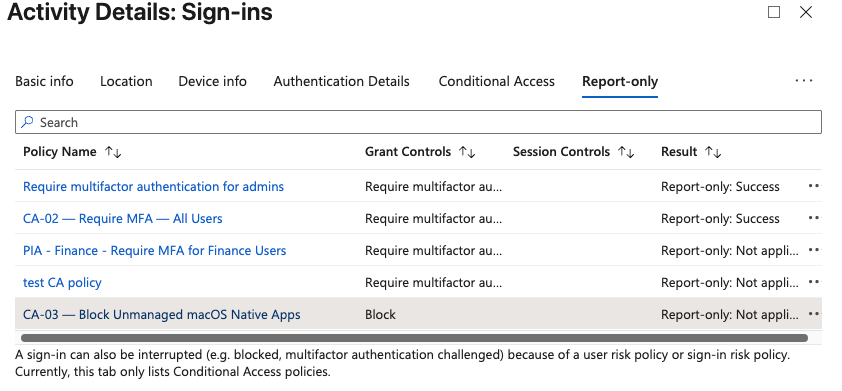
Testing: Recommended In Report-only mode
first you can see in the sign-in logs in Report-only mode that policy CA-03 blocks my unmanaged macOS device
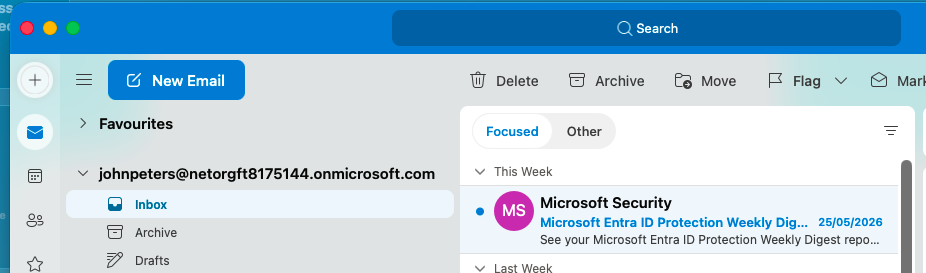
You can also see that in Report-only mode I can login into the native Office apps installed on the unmanaged device. (Word and Outlook)
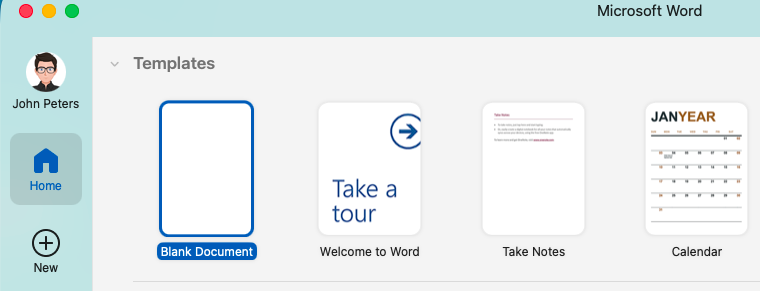
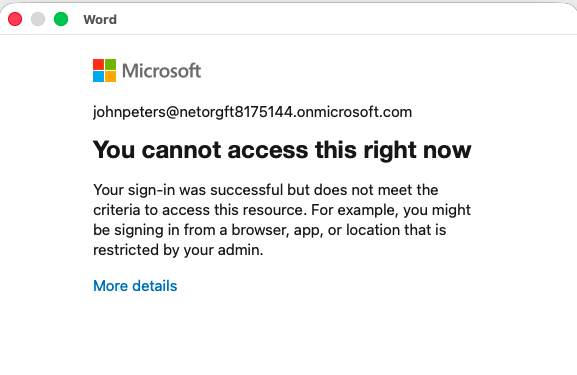
After applying CA-03 the end user is blocked from logging into these applications as shown below when logging into word.
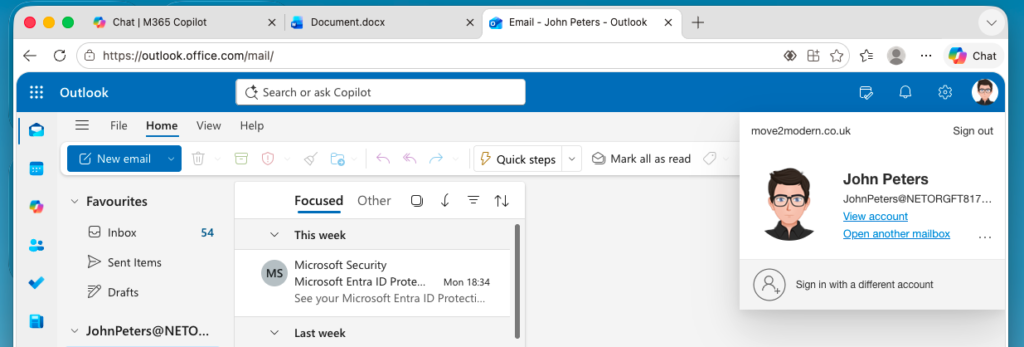
BUT Word and Outlook access via the browser is still possible, this includes other browsers like Safari and Chrome as well as Edge at this point.
Phase 4 — SharePoint Unmanaged Device Policy
SPO-01 | Browser – Web-Only Access for Unmanaged Devices
Why fourth: enforce this after CA-03 is live. At this stage browser access is now the only path in for BYOD Mac users. This policy controls what they can do in that browser session. If you apply this before CA-03 enforces, users who can no longer use native apps may also find browser access restricted, with no clear alternative.
This policy prevents files being downloaded from SharePoint and OneDrive to the Mac in the browser. Users can read, create, and edit files in Office Online – but the files stay in Microsoft 365 ensuring the security. Nothing lands on the device.
Configured in SharePoint admin centre
SharePoint admin centre (admin.microsoft.com → SharePoint) → Policies → Access control → Unmanaged devices
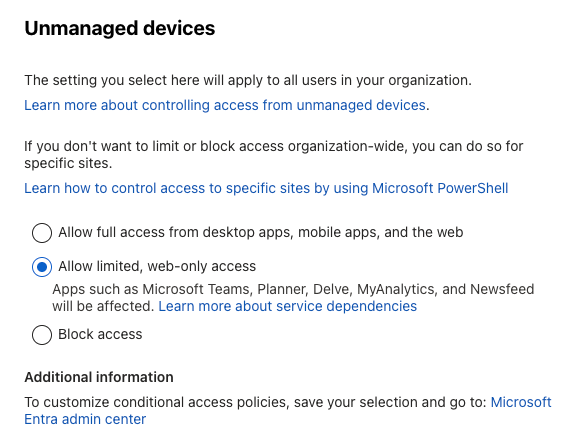
Select: Allow limited, web-only access → Save
What this enforces in practice:
– Files open in Office Online (Word, Excel, PowerPoint Online) rather than downloading
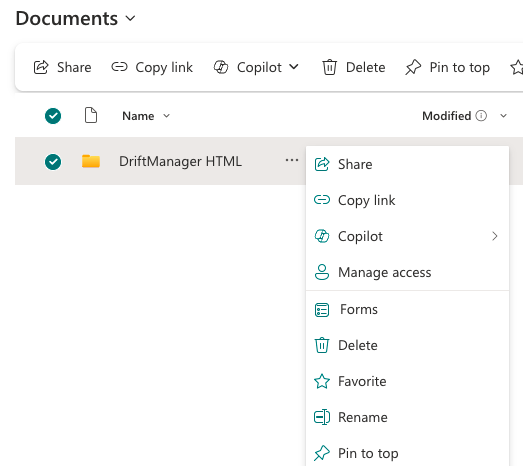
– Download option is removed from document libraries
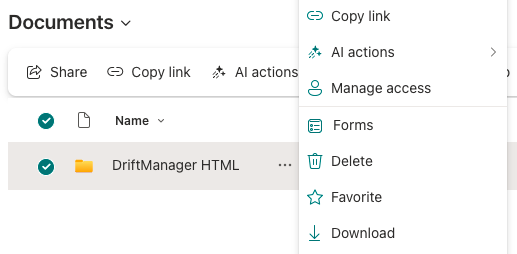
Before view
After view
After implementing the policy the ‘Download’ file option is removed as per below
– Sessions are non-persistent meaning “stay signed in” is suppressed
– OneDrive desktop sync is blocked at the SharePoint policy layer (additionally blocked at the CA layer via CA-03)
– Users still have the ability to collaborate, comment, co-author, and share links
It’s also worth knowing that this SharePoint policy is powerful, is enforced first and impacts access across the different browsers used to access SharePoint.
NOTE This policy creates a hidden CA policy in your tenant visible as `[SharePoint Admin Center] Block access from apps on unmanaged devices` and [SharePoint admin center] ‘Use app-enforced restrictions for browser access’. These two policies are switched on.
PLEASE Do not delete or modify it if you want to maintain this state.
Verify Sign into SharePoint in a browser on an unmanaged Mac with a pilot account → navigate to a document library → confirm no download button → click a file → confirm it opens in Office Online rather than downloading.
Phase 5 – Defender for Cloud Apps Session Controls (Strongly Recommend This)
Phase 5 below has two parts: a CA policy to route sessions through the MDCA proxy, and session policies in the Defender portal that apply the actual restrictions
CA-04 | Route Browser Sessions Through MDCA
MDCA-01 | Block Downloads in Session
Why fifth: this layer adds belt-and-braces download blocking, copy/paste restriction, print blocking, and a full audit trail of every session. The SharePoint unmanaged device policy is good and in most scenarios will have you covered so this policy fills any security gaps – MDCA (Microsoft Defender for Cloud Apps – formally called MCAS – Microsoft Cloud App Security) session policies helps enforce the restrictions and gives you the evidence an assessor will appreciate.
Think of MDCA as a security layer that sits between your users and cloud apps they use and is part of Microsoft Defender XDR.
For this you will require Microsoft 365 Business Premium or better (which includes Defender for Cloud Apps). If you have this licensing, I’d consider this mandatory rather than optional for a CE-defensible setup.
Step 5.1 — Create the CA routing policy:
A Conditional Access policy must route the relevant sessions through the MDCA proxy before session policies can apply.
| Setting | Value | |
| Name | CA-04 – MDCA Session Control – Unmanaged macOS | |
| Users | All users | |
| Exclusions | BreakGlass accounts group | |
| Target resources | Select apps: Exchange Online; SharePoint Online; Office 365 (Teams is greyed out because of dependencies) | |
| Conditions → Device platforms | macOS only | |
| Conditions → Client Apps | Browser only | |
| session | Use Conditional Access App Control → Use custom policy | |
| Enable policy | Report-only initially → On after CA-03 |
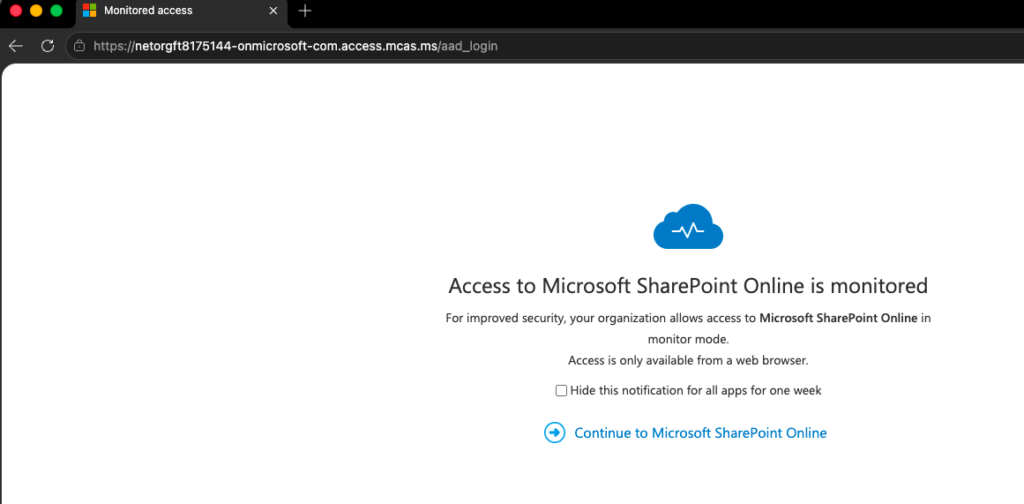
When this is active, unmanaged Mac browser sessions to the targeted apps will have `.mcas.ms` appended to the URL – this is expected and confirms proxying is active (You may only see this happen however once the session policies have been added – This doesn’t mean CA-04 isn’t in place and working though).
Deployed on its own, downloads are not blocked and copy/paste restrictions are not enforced SO if you wanted to use CA-04 to just monitor user behaviour or analyse download activity then this will achieve this before adding add-on restrictions.
Step 5.2 – Create session policies in Defender portal:
Microsoft Defender portal (security.microsoft.com) → Cloud apps → Policies → Policy management → Create policy → Session policy
Cloud App Policy A – Block Downloads:
| Setting | Value | |
| Name | MCAS-01 – Block Downloads – Unmanaged macOS | |
| Category | Access control | |
| Session Type | Control file download (with inspection) | |
| Activity Source filter | App → Automatic Entra ID onboarding → Equals → Office 365 exchange online, Office 365 SharePoint Online | |
| Activity Source filter | Device → Tag → does not equal → Intune compliant | |
| Action | Block (Add customised block message if required) |
Cloud App Policy B — Block Printing / Cut / Pasting (optional but CE-aligned):
Worth knowing that this blocks end users from using printing options like CMD + P on the keyboard. The menu Print option should already be prevented by the SharePoint config above.
| Setting | Value | |
| Name | MCAS-02 – Block Print cut and paste – Unmanaged macOS | |
| Category | Access control | |
| Session Type | Block activities | |
| Activity Source filter | App → Automatic Entra ID onboarding → Equals → Office 365 exchange online, Office 365 SharePoint Online | |
| Activity Source filter | Device → Tag → does not equal → Intune Compliant | |
| Activity type | equals →Paste item, Cut/Copy item, Print | |
| Action | Block (Add customised block message if required) |
To Verify: Sign into SharePoint in a browser on an unmanaged Mac → note the `.mcas.ms` URL → attempt to right-click a file and download → confirm block message. Check Defender portal → Cloud apps → Activity log → confirm the session is visible with user and app details.
After deploying these policies and logging into SharePoint you will receive a notice included below. You can see the URL extension has been added meaning the CA policy is routing through the proxy for the session.
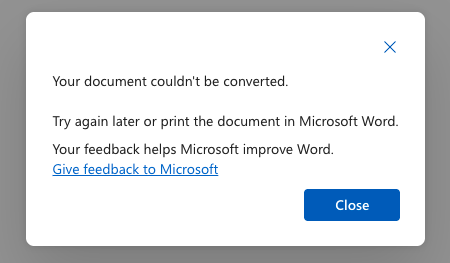
When testing printing you will be presented with the following popup window. This is effectively saying the default process to convert to PDF for printing is not available to the end user, preventing them from printing.
When testing Cutting information from a SharePoint document like Word or Excel, highlighting content and right clicking will still present the Cut / Copy / Paste menu options and while the cutting action may work and details removed it essentially will not copy the details to the clipboard preventing the pasting of that information elsewhere.
For copy and past when you try to action these you should be shown a restriction windows as below.
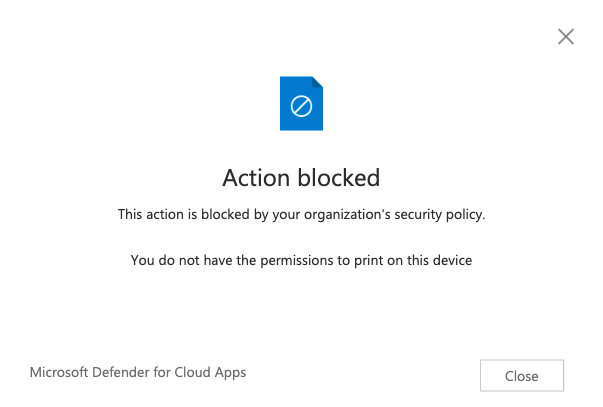
The same experience will be seen when copying content from outside of Office 365 documents such as a web browser search and copying into the protected organisational documents. I should add that end users can still edit, save and collaborate as required with these documents.
Phase 6 — Sign-In Frequency and Session Lifetime
CA-05 | Sign-In Frequency – Unmanaged Devices
Why sixth: this satisfies the CE access revocation requirement. Without this, a browser session can persist for days even after you’ve disabled a user’s account. With it, users must re-authenticate at regular intervals, and a disabled account combined with token revocation cuts access within minutes.
| Setting | Value | |
| Name | CA-05 – Sign-in frequency – unmanaged devices | |
| Users | All users | |
| Exclusions | BreakGlass accounts group | |
| Target resources | All Cloud Apps | |
| Conditions → Device platforms | macOS only | |
| Conditions → Client Apps | Browser only | |
| Condition -> Filter for devices | Exclude filtered: `device.isCompliant -eq True` | |
| session -> sign-in frequency | Periodic reauthentication -> 8 hours | |
| session -> Persistent browser session | Never persistent | |
| Enable policy | On |
As added information regarding session access:
Immediate revocation (leavers or lost devices)
To immediately remove a user’s access:
- Go to Entra admin centre → Users, then locate the user account
- Select Revoke sessions
- This invalidates all existing refresh tokens
- Active sessions will be forced to re-authenticate and will fail at the next token check (typically within minutes to an hour)
- Continuous Access Evaluation (CAE) which is not automatically active for all apps must be active for near-real-time revocation, and without this the window when access is cut is up to the token lifetime
- Select Disable account
- This prevents any new sign-ins immediately
- If the device is lost or compromised:
- Reset the user’s password to invalidate any cached credentials
Phase 7 – Edge for Business via Edge Management Service
Why Edge for Business ? – Increasingly Edge for Business is the preferred secure browser for unmanaged access, where identity and session controls are enforced and particularly for organisations implementing Microsoft-focused environments/tenants. The Edge browser alone is not enforcing security, it helps standardise a secure work browser experience.
EMS-01 | macOS BYOD Browser Policy
Why seventh: this is an additive to the CA and SharePoint architecture already configured and has no dependency on these. The CA and SharePoint controls enforce regardless of which browser the user uses. Edge for Business adds governance specifically within the Edge browser session. Deploy this after the core CA policies above are live so you’re not troubleshooting two things simultaneously.
This configuration uses the Edge Management Service in the M365 Admin Centre – not Intune, not App Protection Policies. It works on unmanaged Macs because policy delivery is identity-based: Edge calls the management service when the user signs into their work profile, regardless of device enrolment state.
Important: This does not require the device to be enrolled and It does not satisfy a CA “Require app protection policy” grant. It adds browser-level governance within Edge sessions only.
Step 7.1 – Access the Edge Management Service
1. Sign in to M365 Admin Centre (admin.microsoft.com) with a Global Admin or Edge Administrator account
2. Left menu → Settings → Microsoft Edge (or search “Edge Management”)
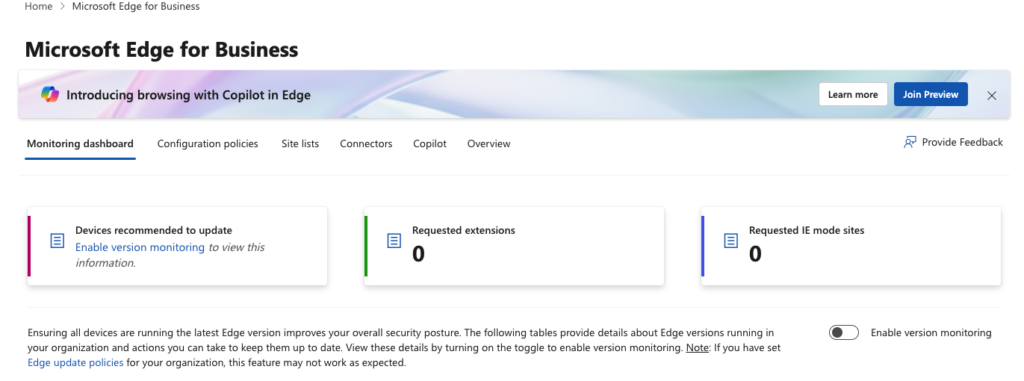
3. Here you should see the the Edge management service dashboard
Step 7.2 – Create a macOS BYOD Configuration Profile
Select Configuration profiles → Create policy
1. Name: `EMS-01 – macOS BYOD Browser Policy`
2. Platform: Select macOS (and optionally Windows if you want a unified policy – as the service now supports cross-platform profiles from a single policy as of January 2026, but as i dont verify this here it is worth checking management service documentation for the latest support)
3. Profile type: Cloud policy (not Intune policy – cloud policy works on unmanaged devices; Intune policy requires enrolment)
4. Assignment: Assign to your `macOS Unmanaged Pilot group` group initially, then broaden to all users after testing
Step 7.3 — Configure Settings
NOTE: Mandatory settings cannot be overridden by the user and should be used carefully.
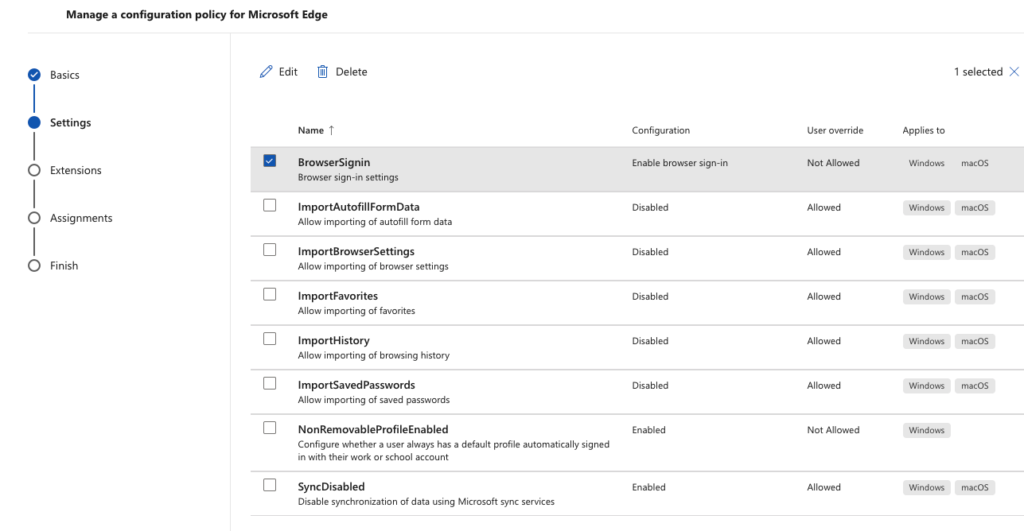
Within the setup screen for settings configure the following:
Work profile and identity:
Sign-in to browser with work or school account required
Non-removable profile enabled (Applicable for Windows devices only)
Hide the First-run experience and splash screen
Data protection:
Sync disabled | Enabled
Personalise your browser
Import of browser data from other browsers
You can see the settings chosen for my policy here:
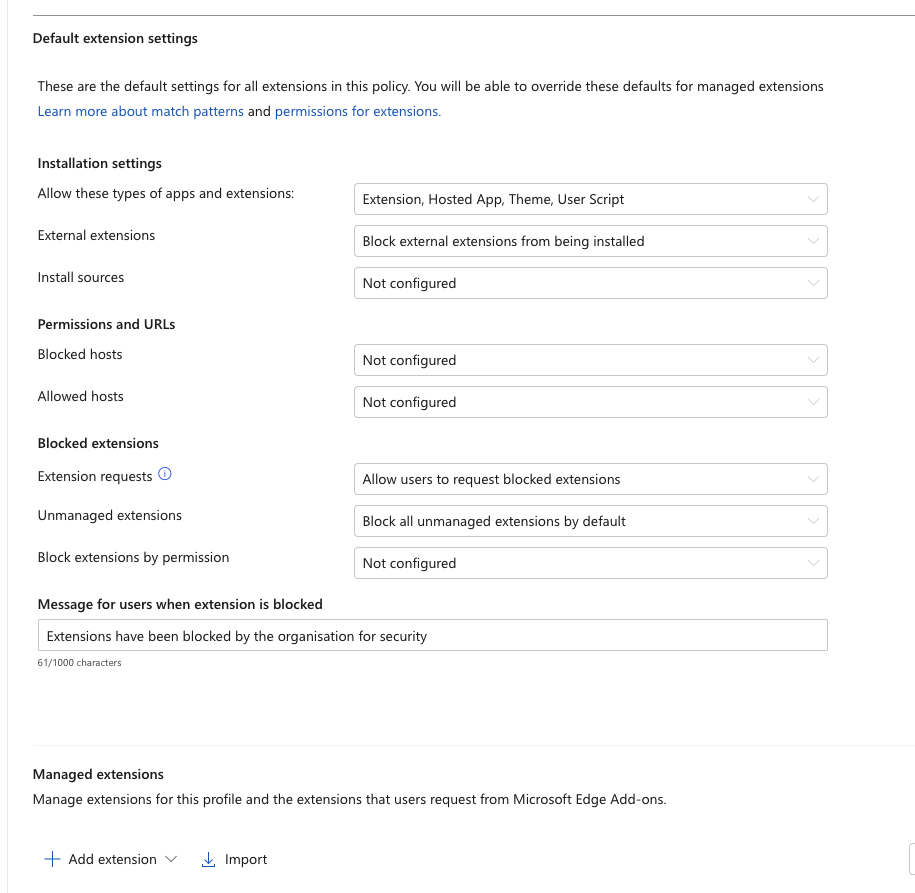
Extension control:
In a BYOD model, controlling the browser environment is less about enforcing access and more about reducing the attack surface. Therefore extension management is a key part of that strategy.
Step 7.5 — Deploy and Verify
1. Save the profile and confirm assignment to your pilot group
2. On a pilot user’s Mac, open Microsoft Edge
3. Sign in with the work account when prompted and choose switch to work profile.
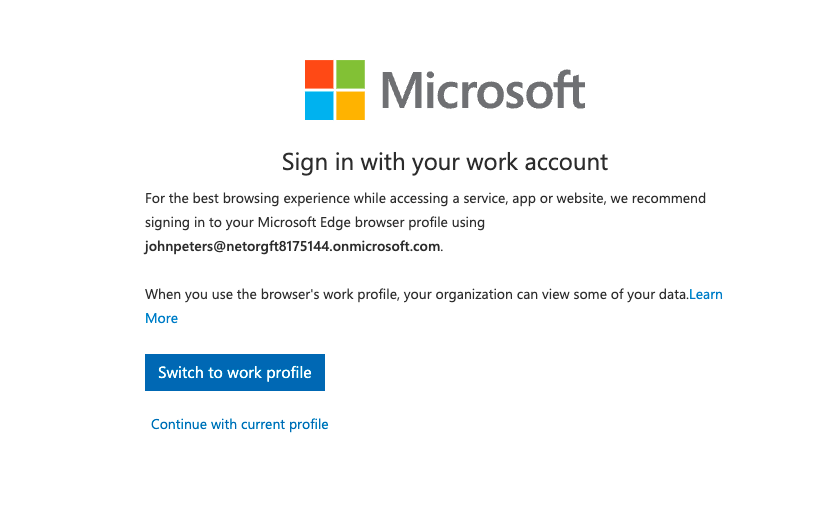
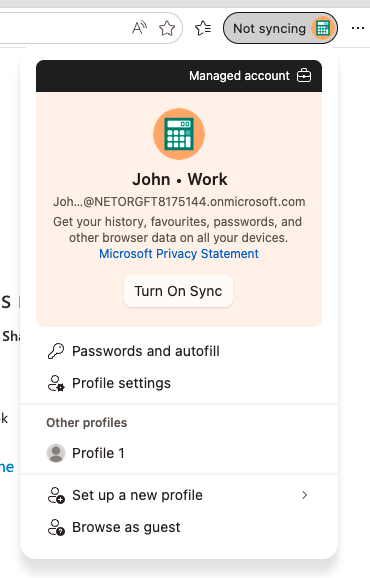
You can then see that the Managed work account has been applied.
4. Navigate to `edge://policy` in the address bar – you’ll see a list of all policies applied
5. Confirm your mandatory settings appear in the Cloud policies section and show as Mandatory
6. Verify the user cannot change the mandatory settings (the relevant controls in Edge Settings should be greyed out or hidden)
Troubleshooting: If policies don’t appear at `edge://policy`, confirm the user is signed into the work profile (check the profile indicator in the top-right of Edge – it should show the work account avatar and potentially a briefcase icon). Policies only apply to the signed-in work profile, not the personal profile.
Step 7.6 – App Protection Policy for Windows, iOS, Android Users (Companion Config)
When looking at other device types managed through Intune – If your organisation also deploys and manages BYOD configuration on Windows, iPhone, or Android, you can alternatively deploy a true Intune App Protection Policy for Edge on those platforms which gives you the full MAM SDK data controls that macOS cannot receive. (See Part 1 of this blog for more info on this). These are separate policies created in Intune, not the Edge Management Service.
Cyber Essentials Compliance Mapping
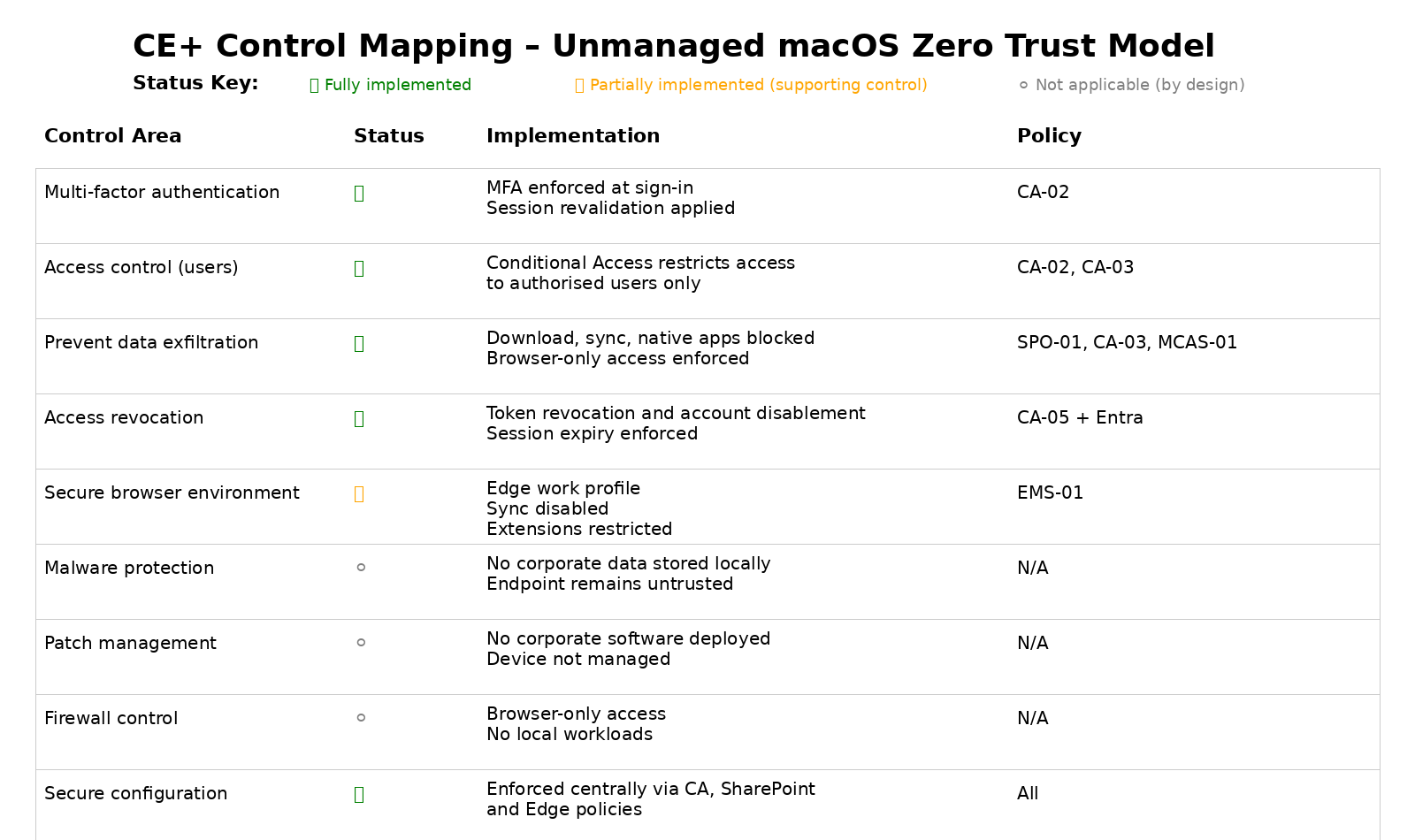
A note on the “N/A” policies within the above table: Its important I add a mention about the N/A policies above here – that mentions malware protection, patching, and firewall as being not applicable in the overall CE compliance with macOS unmanaged devices. The scope really depends on your assessor accepting that corporate data genuinely never reaches the device. With the combination of CA-03 (no native apps) and SPO-01 (no downloads in browser) this makes it defensible – but it is worth having the conversation with your IASME certification partner before the assessment rather than discovering a disagreement during it. This architecture relies on preventing corporate data from being written to disk, rather than securing the endpoint itself. CE Plus assessors in particular may take a stricter view on personal devices accessing corporate data too
Here’s a merged closing section that preserves every substantive point from both originals, removes the repetition, and flows as a single cohesive close:
This Is a Stepping Stone, Not the End State
The configuration described in my article here works because it aligns with what macOS can actually enforce today. Blocking native apps via Conditional Access, enforcing web-only access through SharePoint policies, adding Defender for Cloud Apps session controls, and governing browser behaviour through Edge for Business delivers a solution that is enforceable, testable, and defensible to a Cyber Essentials assessor. That combination matters more than any guidance that sounds comprehensive but describes controls that don’t actually get enforced.
It’s also honest about what macOS BYOD cannot do right now. The MAM SDK gap is real, and the neat app-level data protection that makes mobile BYOD really usable isn’t available on the macOS desktop – not for Outlook, Teams, OneDrive, or Edge. Any guidance that tells you otherwise, including AI-generated guidance, should be tested before you rely on it for a compliance position.
What this architecture does deliver is a clean foundation for what comes next. When an organisation is ready – operationally and from a compliance standpoint, enrolling macOS devices into full MDM becomes a conscious security upgrade rather than a disruptive change. Endpoint controls become additive, and data protection can move from absolute prevention to governed access.
The honest position on where things are headed: Microsoft is clearly investing in the browser as the primary management surface for unmanaged devices, and the trajectory for macOS is toward the same level of data protection that Windows, iOS, and Android users get today. The Purview inline DLP capabilities in Edge for unmanaged macOS are in preview and move in that direction, even if they’re currently E5-only. When those capabilities reach Business Premium licensing and are released at GA, they’ll be a meaningful addition to this architecture.
Until then, treating unmanaged and managed macOS BYOD as intentional stages rather than competing models I believe is the right approach. It avoids what some may think as pitfalls organisations can encounter when personal Macs are enrolled too early, while also giving you a position that is defensible for Cyber Essentials and other compliance requirements. This matters far more than one that sounds thorough but doesn’t hold up under scrutiny.